Password Managers vs. Browser Autofill: Which Is Safer for Everyday Logins?
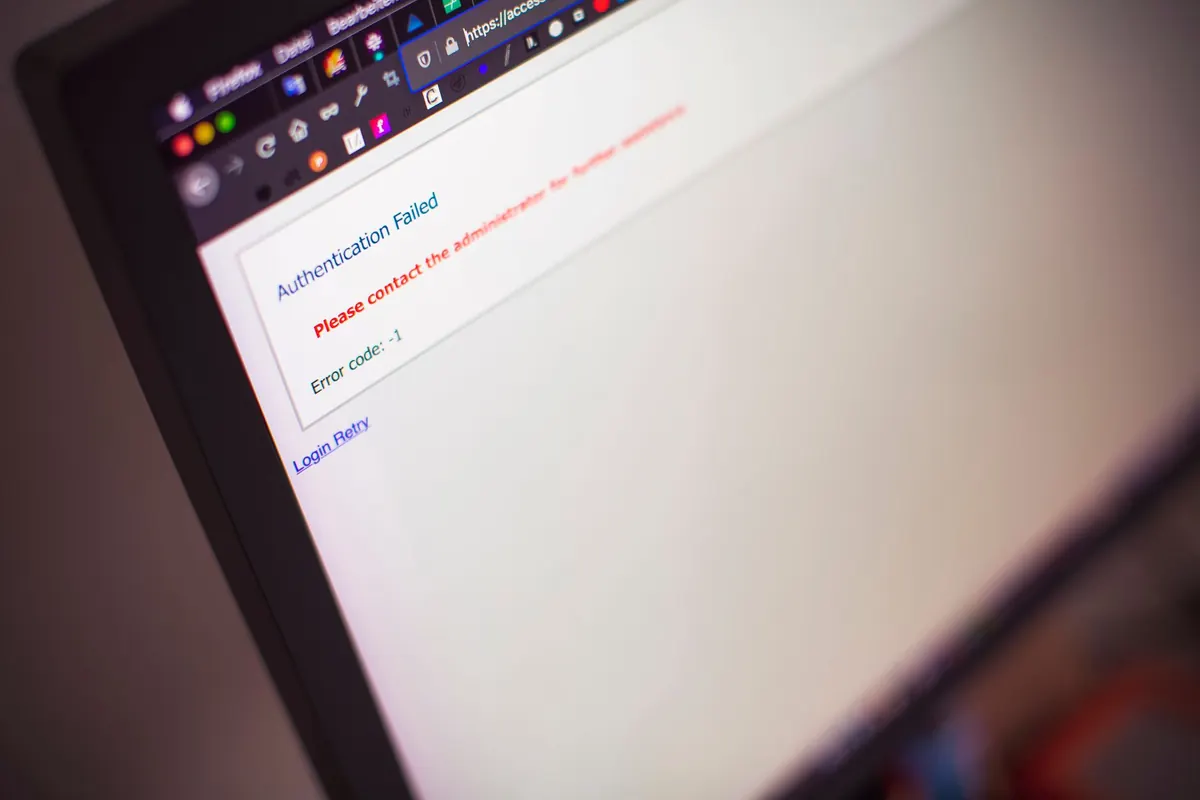
Two different things can fill in your username and password: the browser you're already using, and a dedicated password manager. On the surface they behave almost identically. You tap a field, something offers to complete it, you approve with a fingerprint or a PIN, and you're signed in. The differences appear behind that tap — on a shared laptop, on a convincing phishing page, on the day a device goes missing. Here's how the two compare for everyday logins.
What each one actually is
Browser autofill is a feature, not a product. Chrome, Edge, Safari and Firefox all offer to save credentials and replay them on the matching site. Setup time: none. The passwords live inside your browser profile, protected by whatever protects that profile — usually your device login, sometimes a separate prompt before the browser displays them. Sign into the browser with a Google, Microsoft or Apple account and those logins travel to your other devices too.
A password manager is a separate application with its own vault. You create one master passphrase, and that key encrypts everything inside: logins, card details, secure notes, recovery codes. The vault stays locked until you open it, and it follows you across browsers, phones and computers. Familiar names include Bitwarden, 1Password, Dashlane and KeePass, but the category matters more than the brand.
Where browser autofill gets shaky
The convenience is real. For plenty of people, autofill is the only reason they have unique passwords at all. The trouble is the container.
Your browser profile is the master key
Saved passwords are only as safe as the session holding them. Leave a laptop unlocked in a café, or let a family member use your computer while you're signed in, and the browser's password settings page can display logins in readable form. Nothing stands between them and your email account.
Sync ties everything to one account
Turning on browser sync makes your Google, Microsoft or Apple account the single credential guarding every saved login. That account is a bigger prize than any one site, and it's also the one you sign into most often — which makes it the most phished. Some browsers offer an extra passphrase for end-to-end encryption of synced data, which is worth switching on if you stay with autofill. Most people never do.
Few safeguards around the credentials themselves
Browser autofill rarely tells you a password is weak, reused, or sitting in a known leak. It won't generate a strong replacement for the site you're on, and moving your logins elsewhere later is more awkward than it should be. It's built to fill forms, not to manage an identity.
Where password managers pull ahead
A dedicated manager closes most of those gaps, and the biggest gains are structural.
- A vault that stays shut. Nothing fills until you open it with your master passphrase or a biometric. Walking away from an unlocked device matters far less.
- A secret that isn't stored. Your master passphrase derives the encryption key; the manager itself shouldn't be able to read your vault. That's the point of zero-knowledge design.
- Generation built in. When you create an account, the manager offers a long random password and remembers it. You never have a reason to reuse one.
- Audit and breach checks. Most managers flag weak, reused and leaked credentials, then link you straight to the site to fix them.
- Portability. One vault covers every browser, app and device. Switching from Chrome to Firefox changes nothing.
- Sharing without a chat message. Family and team plans let you pass a login to someone without pasting it into email or a text.
The honest convenience comparison
Autofill wins the first five minutes. Nothing to install, nothing to remember, and it works inside mobile apps as well as on websites. On a phone, both iOS and Android let a manager act as the system autofill provider, but the browser's own store still feels frictionless because it was already there.
A manager costs you a one-time setup and a master passphrase you must actually remember. A few older apps refuse pasted passwords, and some sites still break when a field is filled programmatically. Those problems are less common than they used to be, and the daily cost is roughly one extra tap. If that tap is what would send you back to reusing Summer2024! everywhere, then autofill paired with a strong device passcode is the better trade. Good security you keep beats perfect security you abandon.
Risks neither tool fixes
Worth saying plainly, because these come up more often than vault architecture does. If you're securing a workplace device or a regulated environment, get guidance from your IT or security team rather than a website.
- Phishing on a lookalike page. Approve a fill on yourbank-secure.example and you've handed over the password. Check the domain, not the design.
- Malware. Keyloggers and screen capture beat any vault.
- Weak account recovery. If an email address or phone number is the recovery route for your manager, secure that first.
- No second factor. A vault full of perfect passwords still fails on a site that only asks for a password.
Setting this up this week
Pick one place to be the source of truth, then move everything there.
- Choose a dedicated manager. Turn on two-factor authentication for the manager account itself, and store the recovery codes somewhere offline.
- Craft a master passphrase of four or five unrelated words. Don't reuse it anywhere, and don't keep it inside the vault it protects.
- Import the passwords saved in your browser, delete them from the browser, and switch off password saving. Keep address autofill if you like it — it carries far less risk than logins.
- Fix the accounts that matter first: email, banking, work, and anything with a payment method on file. Let the manager generate the new passwords.
- Work through the rest over a few weeks using the audit report. Batch it. Nobody fixes two hundred logins in one sitting.
- On your phone, set the manager as the autofill service and delete the passwords stored by the browser.
Do that, and the browser goes back to being what it's good at — a browser — while your credentials sit behind a lock you control.
Photo: Markus Spiske / Pexels