Privacy Settings Audit for a New Phone: A 15-Minute Checklist
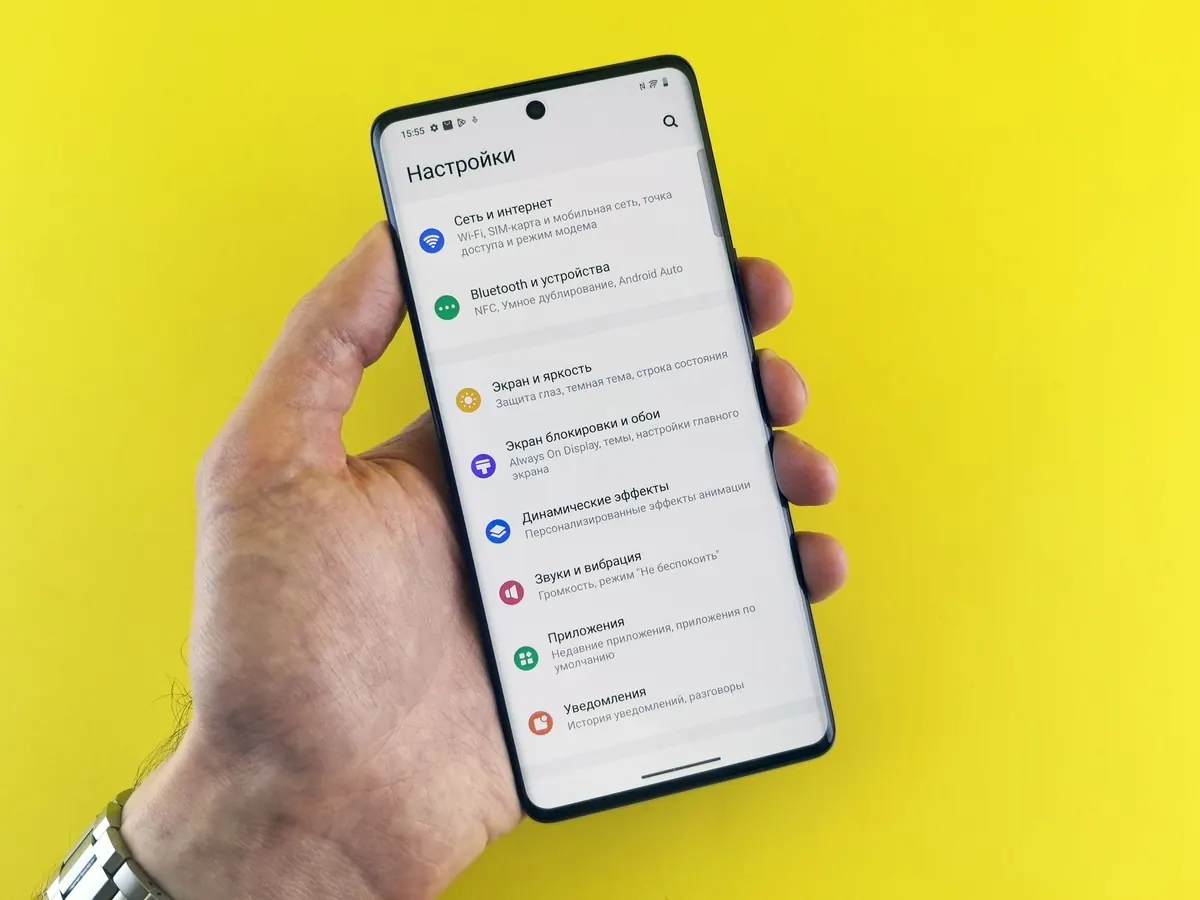
A new phone arrives with a setup wizard that asks more questions than a passport application, and most of us tap through it while the coffee goes cold. That part is fine. What matters is the second pass: the fifteen minutes you spend in Settings afterwards, checking the choices the phone made on your behalf. Defaults are built for broad usefulness, not for your privacy, and they differ between iOS versions, Android builds and carriers. Read the actual labels on your own device as you go.
Start With the Permissions Already Granted
The wizard quietly approves a lot. A shopping app gets your location, a photo editor gets your entire library, a puzzle game gets your microphone. None of that is needed for the app to function, and all of it is easy to reconsider now rather than in six months.
On iPhone, open Settings, then Privacy & Security, and walk down the list. On Android, it is Settings, then Privacy, then Permission Manager. Both give you categories — camera, microphone, contacts, photos, location — with the apps holding them.
- Location: Set anything that does not obviously need it to "Never," and change "Always" to "While Using" wherever the app still works. A weather app needs your city while it is open, not your movements all day. Also look for the precise-location toggle and turn it off for apps that only need a rough area.
- Microphone and camera: Restrict these to apps you genuinely record with. Voice notes, video calls and camera apps qualify. A retailer does not.
- Photos: Both systems now let you share selected images instead of your whole library. Choose that, and add pictures as the app needs them.
- Contacts: Social and messaging apps ask for this by default. Deny it unless you are deliberately using the app to find people you know.
- Bluetooth: Some retail and social apps scan nearby devices to infer where you are. Deny it unless you are pairing something.
One habit worth keeping: revoke first and let the app ask again. A permission prompt that appears the moment you try to use a feature tells you far more than one buried in setup.
Stop the Lock Screen From Oversharing
Your lock screen is the most visible surface on the phone, and by default it prints message text, email subjects and calendar entries for anyone standing nearby. On iPhone, go to Settings, then Notifications, then Show Previews, and set it to "When Unlocked." On Android, look for Lock screen notifications and choose to hide sensitive content. Then check the widgets: weather, calendar and health tiles can quietly reveal where you are, who you are meeting and how you slept. Remove anything you would not want a stranger at the next table to read.
Rein In Ad Tracking and Device Identifiers
Two settings do most of the work here. On iPhone, open Settings, then Privacy & Security, then Tracking, and turn off "Allow Apps to Request to Track" so apps cannot follow you across other companies' apps and sites. On Android 12 and later, go to Settings, then Privacy, then Ads, and delete the advertising ID rather than merely resetting it. Delete means the identifier stops being handed out; reset just starts a fresh profile.
You can also turn off personalised ads inside your Google account and inside manufacturer accounts such as Samsung's. Be realistic about the result: ads do not disappear. They simply stop being tied to a profile built from your activity.
Trim What the Phone Sends Back
Then there is the steady trickle of diagnostics and "improvement" data. Look for these in Settings, usually under Privacy, System Services or About:
- Share analytics, diagnostics and crash data with the manufacturer or app developers
- Personalised recommendations and personalised ads inside system apps
- Improve the voice assistant by reviewing your recordings
- Carrier or device "customer experience" programmes
Each one is defensible on its own. Taken together, they build a detailed picture of how you use the phone, and none of them is required for it to work. Switch off what you would not miss.
Look at the Account-Level Settings
These live outside the phone's own settings app and are the ones people forget. On iPhone, go to Settings, Privacy & Security, Location Services, System Services, and check Significant Locations — a running log of places you visit. Clear it and switch it off if you do not want it. Then review iCloud backups: decide whether messages, photos and health data should sync, and check whether advanced data protection is right for you.
On Android, open your Google account settings and go through Location History (now Timeline), Web & App Activity, and YouTube History. Set auto-delete to three or eighteen months so old records do not accumulate indefinitely. Keep Find My or Find My Device switched on — that is a security feature, not a privacy risk — and confirm that your screen lock is a long PIN or passphrase rather than a four-digit code.
If the phone is issued or managed by your employer, some of these toggles will be greyed out. Ask IT before assuming you can change them.
Your 15-Minute Order of Operations
Doing this in a sensible sequence keeps you from going in circles:
- Set a strong screen lock and add a second unlock method. Two minutes.
- Turn off notification previews on the lock screen. One minute.
- Open the permission manager and revoke location, microphone, camera, contacts and Bluetooth from anything that does not need them. Five minutes.
- Disable app tracking and delete or reset the advertising ID. One minute.
- Turn off diagnostics sharing and personalised recommendations. Two minutes.
- Review account-level location history and set auto-delete. Three minutes.
- Check third-party keyboard permissions — a keyboard with "full access" can see everything you type, including passwords. One minute.
Make It a Five-Minute Monthly Habit
A new app installs a new permission, and a software update sometimes turns a setting back on. Once a month, open the permission manager and skim the list; you will spot the outlier quickly. Check the lock screen previews again after any major update, since those settings occasionally reset. And when an app asks for something that does not match what it does, deny it and see whether it still works. Most of the time, it will.
Photo: Andrey Matveev / Pexels